How to use the Builder
The JZP Font Builder is where the JianZiPu font is made: the drawings of its parts, how each part is typed, and how the parts sit together in a 减字 character. This page walks through each screen in the order you'd usually use them.
Getting started
A JianZiPu character is built from parts, much as an English word is built from letters. You type a short code such as s7k5, and the font swaps each piece for a drawn part (名, 七, 勾, 五) and stacks them into one character. The Builder has a screen for each of those steps:
- Glyphs
- The drawn parts. Each one belongs to an area (finger, hui, string…), and each has spellings: what you type to get it.
- Layouts
- How the parts of each kind of character sit together: which parts it has, the gaps between them, and how it's centred.
- Build & test
- Build the real font file and type in it.
A usual round: change a glyph or a rule, watch it in the live preview, Save, then Build font and check the result in real text.
How words are typed
Every box where you type words in the Builder, and the font itself, read the same codes. A word is its parts in order, with no spaces; a space starts the next word.
| Type | You get |
|---|---|
s7k5 | 名 (finger) + 七 (hui) + 勾 (right hand) + 五 (string). Typed in Chinese, 名七勾五 gives the same character. |
0k3 | 散 (open string) + 勾 + string 3. |
s7,5 | A comma separates hui and string when there's no right-hand technique. |
s7.6k5 | A dot makes a position decimal (七徽六分). 13+ is 徽外. |
s7>\k5 | Modifiers: > 急, / 绰, \ 注. |
fys9k5 | fy (or fanyin) adds 泛音. |
:fenkai :shang79 | A colon starts a vertical word: one to four rows, each a character or a finger + hui. A glyph's vertical form is used after the colon. |
C03|s6,5 | Chords: C 撮 (also DC, FC), the left note, |, the right note. TT 双弹 and BL 拨剌 work the same way. |
# + | # starts a new word without a space; + adds an advance between words. |
The exact keys for each part are its spellings, listed and edited in Glyphs → Typing. The Sample set… menus in Layouts and Build & test hold ready-made word lists (basic words, decimals, modifiers, chords, vertical words, Chinese input, edge cases).
Glyphs
Glyphs lists every drawn part. The sidebar groups them by area (all glyphs in an area share a box size and can stand in for each other in a word); Unassigned holds drawings that aren't in an area yet, so the font can't place them.
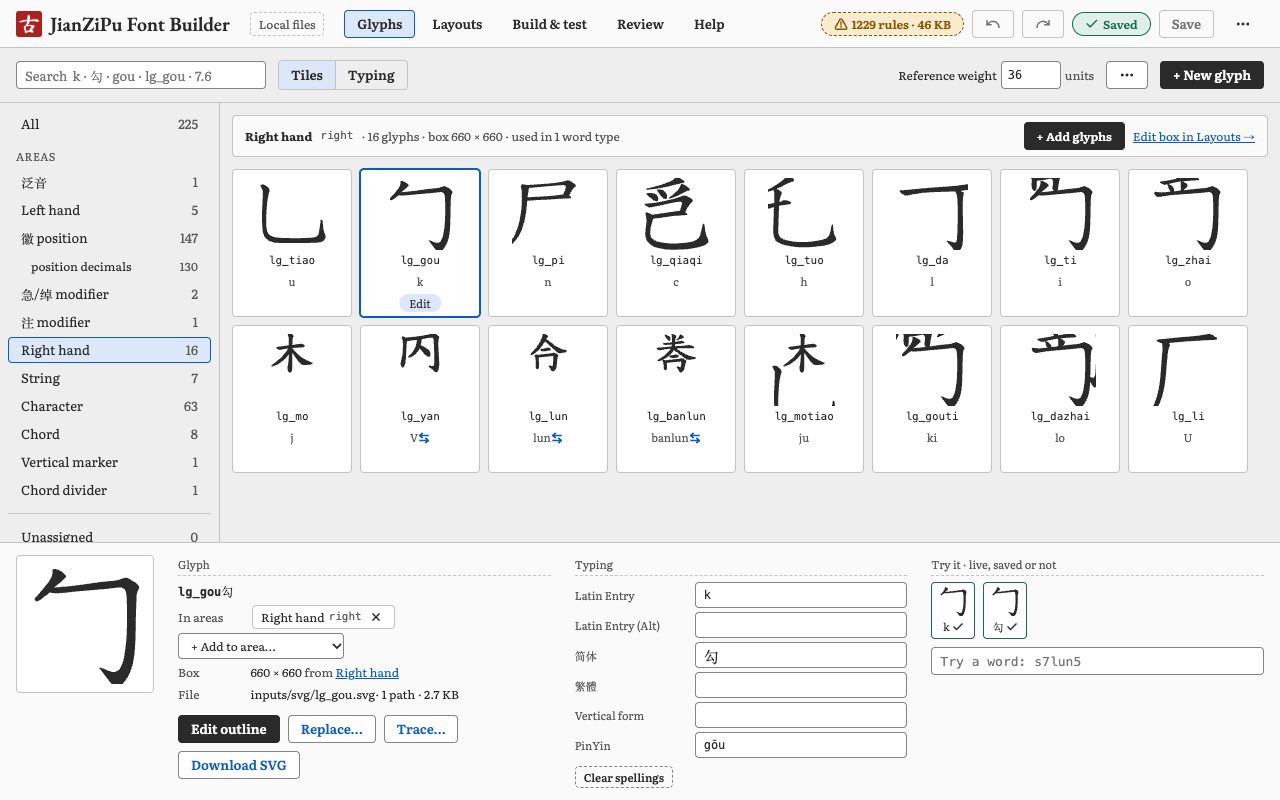
lg_gou) selected: its areas, file and spellings below, and Try it on the right.Finding and adding
- Search finds a glyph by spelling, character, pinyin, name or decimal:
k,勾,gou,lg_gouand7.6all work. - + New glyph opens a new drawing: give it a name (such as
md_9), pick its area, and start blank, from an SVG file, or from an image to trace. - With an area picked, + Add glyphs puts existing drawings into it. One glyph can be in several areas.
- Click a tile to select it; double-click it (or press Enter, or its Edit pill) to open the glyph editor.
Below the tiles, the inspector shows the selected glyph: its areas, its file, buttons for Edit outline, Replace… and Trace…, its spellings, and Try it, which types each spelling and any word you enter through the unsaved spellings, live.
Typing: spellings
The Tiles | Typing switch turns the screen into a table of every glyph's spellings. Each column is one way to type the glyph:
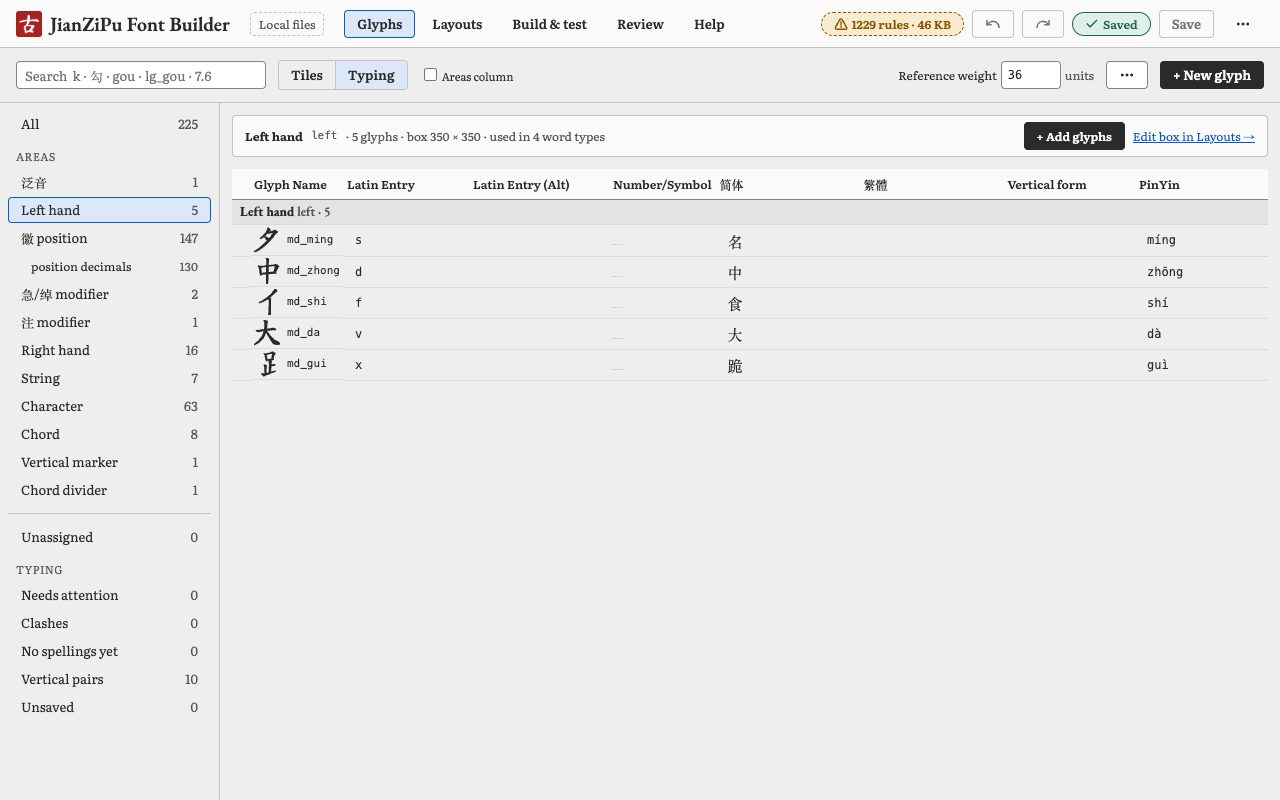
s types 名, d types 中.| Latin Entry | What you type on an English keyboard: a one-letter shortcut (k) or the pinyin (lun). On an empty cell, Tab accepts the greyed suggestion made from the pinyin. |
|---|---|
| Latin Entry (Alt) | A second way to type it (bl, fy). |
| Number/Symbol | Digits and symbols typed the same in any input mode (7, 13+, /). Shown, not edited here. |
| 简体 / 繁體 | The characters as typed with a Chinese input method. 繁體 only when it differs from 简体. |
| Vertical form | The glyph the font swaps in after a colon (the centred version). |
| PinYin | For search and labels only; never typed. |
- Enter keeps a cell and moves down (⇧Enter moves up), Tab moves right, Esc puts the old value back.
- Paste a range copied from a spreadsheet to fill down and across in one step.
- → Import spellings (CSV)… and Export spellings (CSV) move the whole table in and out. An import only changes the screen until you Save.
- Each spelling is checked as you type. Two glyphs can't share a spelling (except a glyph and its own vertical form): a clash holds Save until it's fixed. A spelling that types something else gets a warning, but Save still works.
- The Typing filters in the sidebar (Needs attention, Clashes, No spellings yet, Vertical pairs, Unsaved) narrow the table to what needs work.
The glyph editor
Opening a glyph, or + New glyph, brings up the editor: a drawing canvas with the glyph's box, a tool rail on the left and panels around it.
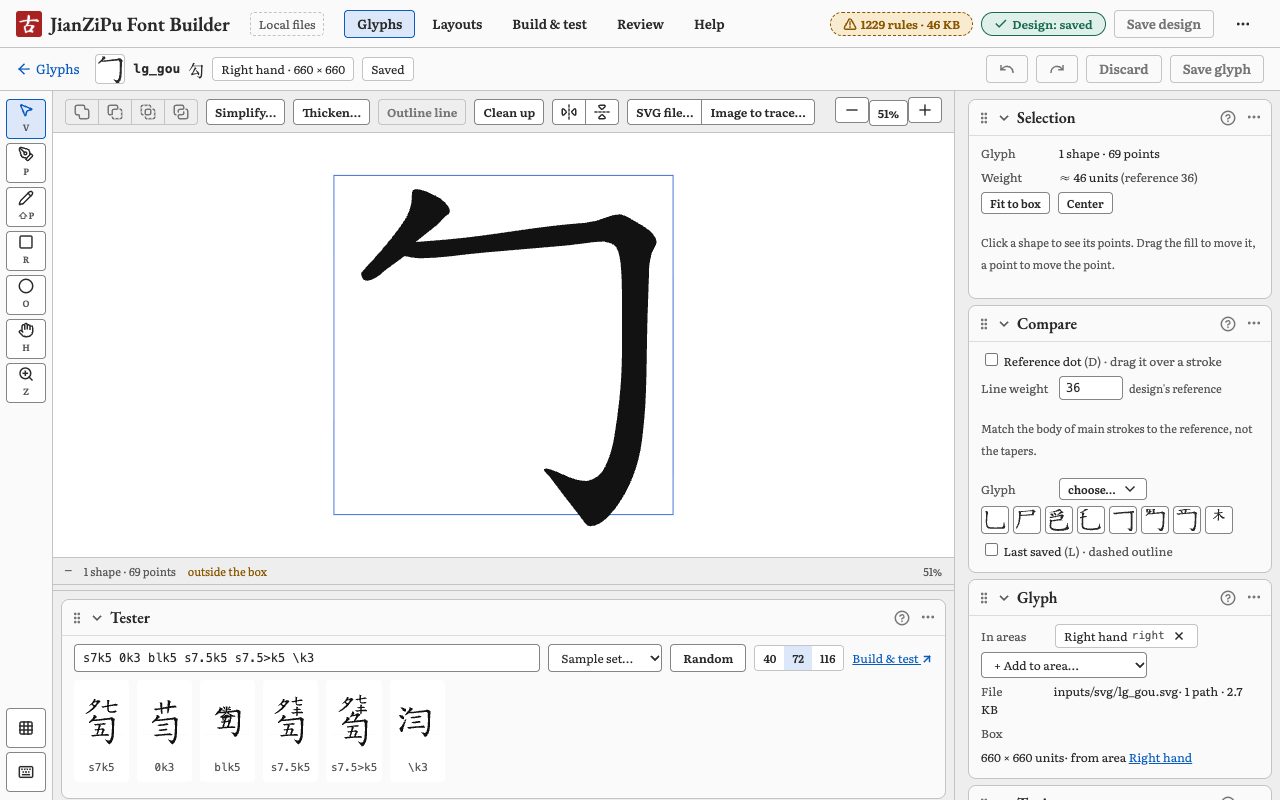
Drawing
- Tools: Select V, Pen P, Pencil ⇧P, Rectangle R, Ellipse O, Hand H (or hold Space), Zoom Z. on the rail lists every shortcut.
- To edit points, use Select (V): click a shape to show its points, then click a point and drag it (arrow keys nudge it, ⇧ × 10). A selected point shows its curve handles; drag a handle's round end to bend the curve. On a smooth point the opposite handle follows; ⌥-drag moves one handle alone. Double-click a point to switch it between corner and smooth. ⇧-click adds points to the selection, and ⇧-drag a box around them picks several. With the Pen, click the outline to add a point, or click a point to remove it.
- Combine two selected shapes with Union , Subtract , Intersect or Exclude (hover to preview). Simplify… removes points; Thicken… makes strokes heavier or lighter; Clean up fixes overlaps.
- Lines drawn with the Pen or Pencil are strokes until Outline line(s) turns them into filled shapes. Save does this for you.
- SVG file… imports a drawing (fit to the box, or keep its size; replace or add). You can also drop a file on the canvas or paste SVG text.
- Image to trace… turns a scan or photo into an outline: adjust Threshold, Corners and Simplify in the Trace panel, then Use this outline. The image itself stays in your browser.
The panels
Each panel's shows the same text as below.
- Selection
- The position and size of what is selected: points (corner, smooth or free) or whole shapes (move, scale, rotate, centre in the box). With nothing selected it shows the glyph's shape count and its estimated stroke weight.
- Compare
- Things to measure against while drawing: a reference dot (D) at the stroke weight to aim for, another glyph laid over this one (G), or the last saved outline (L).
- Glyph
- Which areas the glyph is in (and so its box size), and the file it saves to.
- Typing
- The glyph's spellings: what you type to get it, in Latin letters, numbers and symbols, 简体 and 繁體. Two glyphs can't share a spelling. The same fields are in Glyphs → Typing.
- Try it
- Types each spelling on its own, and any word you enter, through the spellings as they are now, saved or not. Red means "not in the font" until the next build.
- Checks
- Problems the build would trip on: an empty glyph, parts outside the box, open lines and specks, each with a button to fix it. Check as built runs the same conversion as the font build.
- Tester
- Words that use this glyph, drawn live as you edit, so you can see it in context before saving.
- Trace
- Turns the image you opened into an outline. Adjust Threshold (or Auto), specks, corners and simplify, then Use this outline. The image stays in your browser. Esc leaves trace mode.
Saving a glyph
The editor has its own Save glyph (⌘S) and its own undo. Edits that aren't saved yet are kept in the browser, and leaving asks whether to save or discard them. Online, saving puts the glyph into your draft. On your own computer, saving writes builder/inputs/svg/<name>.svg at once; if the file changed on disk meanwhile, you're asked which version to keep. A new glyph joins its area on its first save. The font picks up the new drawing at the next Build font.
Layouts
Layouts is where the parts are arranged. A word type is one kind of character (a standard note, a chord, a vertical word…): which parts it has, in which order, and how they're spaced. The canvas shows one example word; the panels around it edit it.
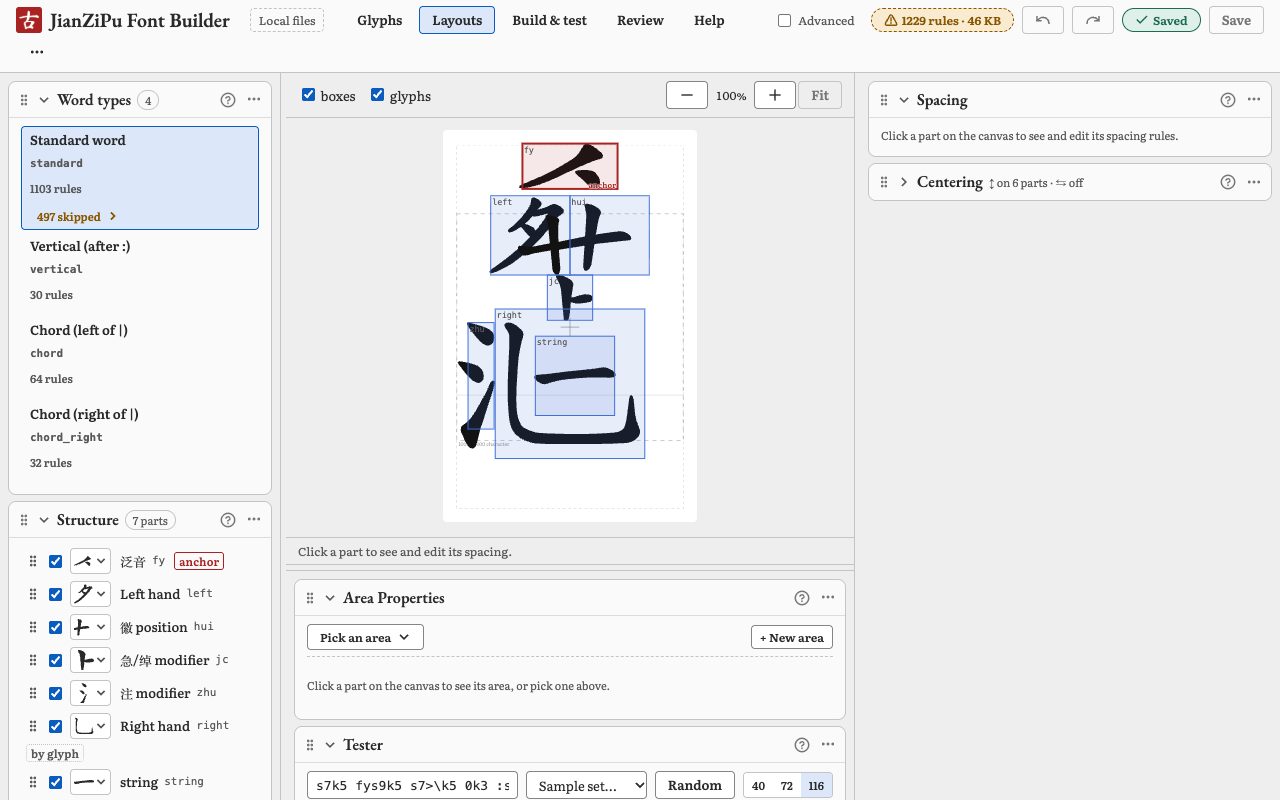
The canvas
- Click a part to select it (Tab cycles through parts). Drag it, or nudge it with the arrow keys, to change its gap.
- Arrows show spacing rules: click one to edit it. Drag a part's ○ handle onto another part's edge to attach it there.
- boxes and glyphs switch the outlines; b toggles boxes, ⇧1 fits the word.
The panels
Panels can be docked left, right or below, folded and resized; → Reset panel layouts puts them back. Each panel's shows the same text as below.
- Word types
- Pick the word type to edit: a standard note, a vertical word, the two halves of a chord. Each shows how many positioning rules it makes; skipped lists shapes that get no rule. With Advanced on you can add, duplicate or delete word types.
- Structure
- The parts of the word type, in order. Tick a part to include it in the example word and pick which glyph it shows. anchor marks the first part of the chain, which carries the word's position. With Advanced on you can add, remove, reorder and make parts optional or repeating.
- Page center
- The point on the page that centring aims for, in font units. Every word type that is centred uses it.
- Font budget
- How many positioning rules each word type makes, and an estimate of their size. The build stores each rule as its own small table, so size is far from a limit (a single lookup can hold 65,535). What to watch is skipped: word shapes that get no rule because a part has nothing placing it, so those words won't be laid out. The rules · KB pill in the header opens this panel; it shows ! while anything is skipped.
- Spacing
- How the selected part sits against the others, vertically or horizontally (the Vertical and Horizontal tabs). A rule reads as a sentence: "its top edge sits at the bottom of 七 + gap". Rows change the gap when certain glyphs are present; otherwise covers the rest. + new rule picks the glyphs it applies to, and the canvas previews every combination. You can also drag the part on the canvas.
- Centering
- Which parts the word is centred on, and where. When a word is centred on an axis, the whole word is shifted to the target, so a start height on that axis (marked * on the canvas) doesn't move it: change the gaps between parts instead, or the target here.
- Area Properties
- An area is a set of glyphs that share a box size and can stand in for each other in a word (all the strings, all the hui numbers…). Here: the box size (type to preview, Enter applies, Esc cancels), the word types that use the area, and its glyphs (Manage to add or remove). Delete area works only on an empty area nothing uses. The Chord divider and Vertical marker areas also have Width of | (or :): how far the next part moves after the divider, and the divider's own width in the font; it sets the box width too.
- Tester
- Words drawn by the live preview, unsaved changes included. Type your own, pick a Sample set… or Random; click a word to put it on the canvas. Build & test opens the same words next to the built font.
Structural edits (adding, removing or reordering parts, new word types, recognition rules) are behind the Advanced checkbox in the header, so they aren't changed by accident. It's off again after a reload.
Build & test
Build & test makes the real font file and shows text in it.
- Build font builds from the saved files. Online, it builds from your draft as it is now, unsaved edits included. On your own computer, with unsaved changes the button reads Save & build and saves first. It takes about half a minute; the build log opens below.
- Each build is a separate file. Download JianZiPu.ttf saves it; earlier builds from this session stay in the list.
- Font is the font the page shows: the newest build, an earlier one, or any .ttf file you open (the released font, say). It's loaded into the page under its own name, so a JianZiPu installed on your computer never stands in for it.
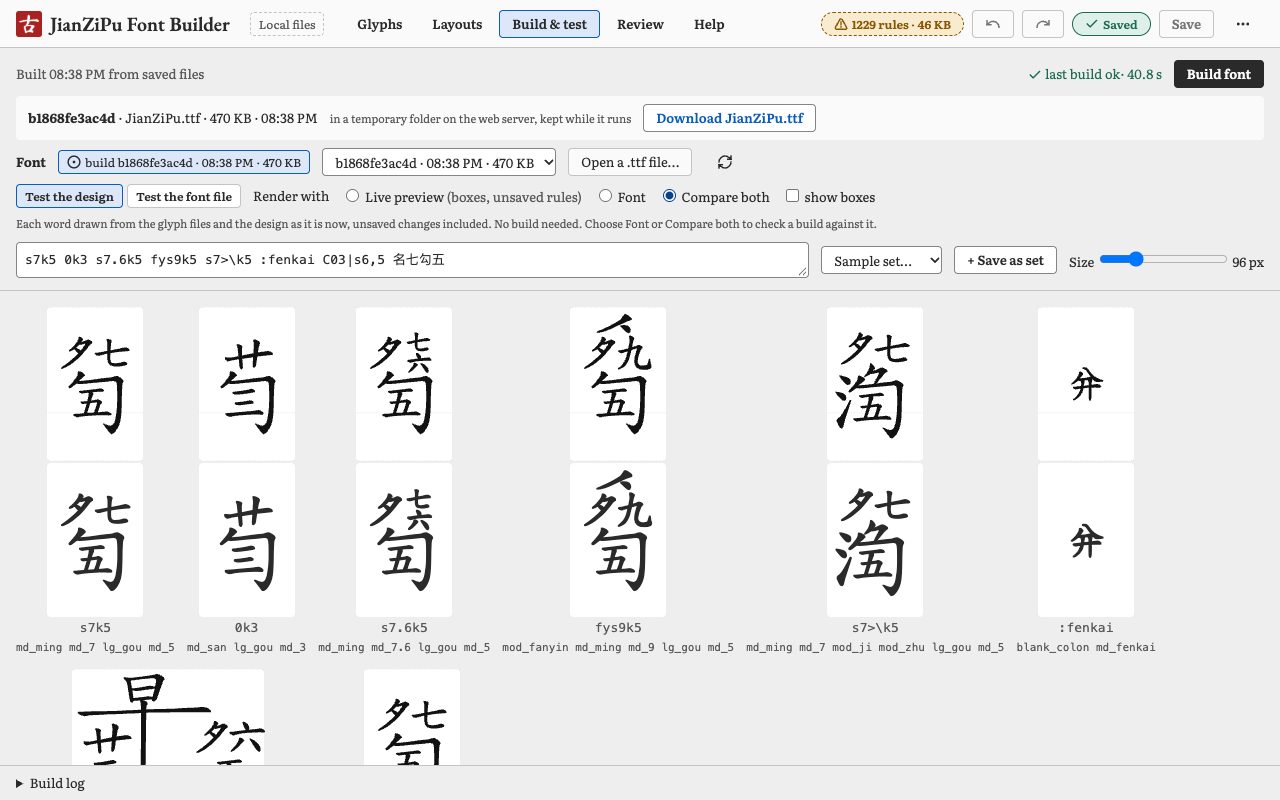
Two views
- Test the design
- One cell per word, to check your design without building. Live preview draws from the design as it is now, unsaved changes included, with optional boxes; Font shows the built font; Compare both puts them one above the other. Click a live word to open it in Layouts. + Save as set keeps the current words as a sample set.
- Test the font file
- Running text in the font file, as a reader sees it. Switch liga (substitution) and kern (positioning) off to see the raw parts, try vertical columns, or compare with a second font side by side.
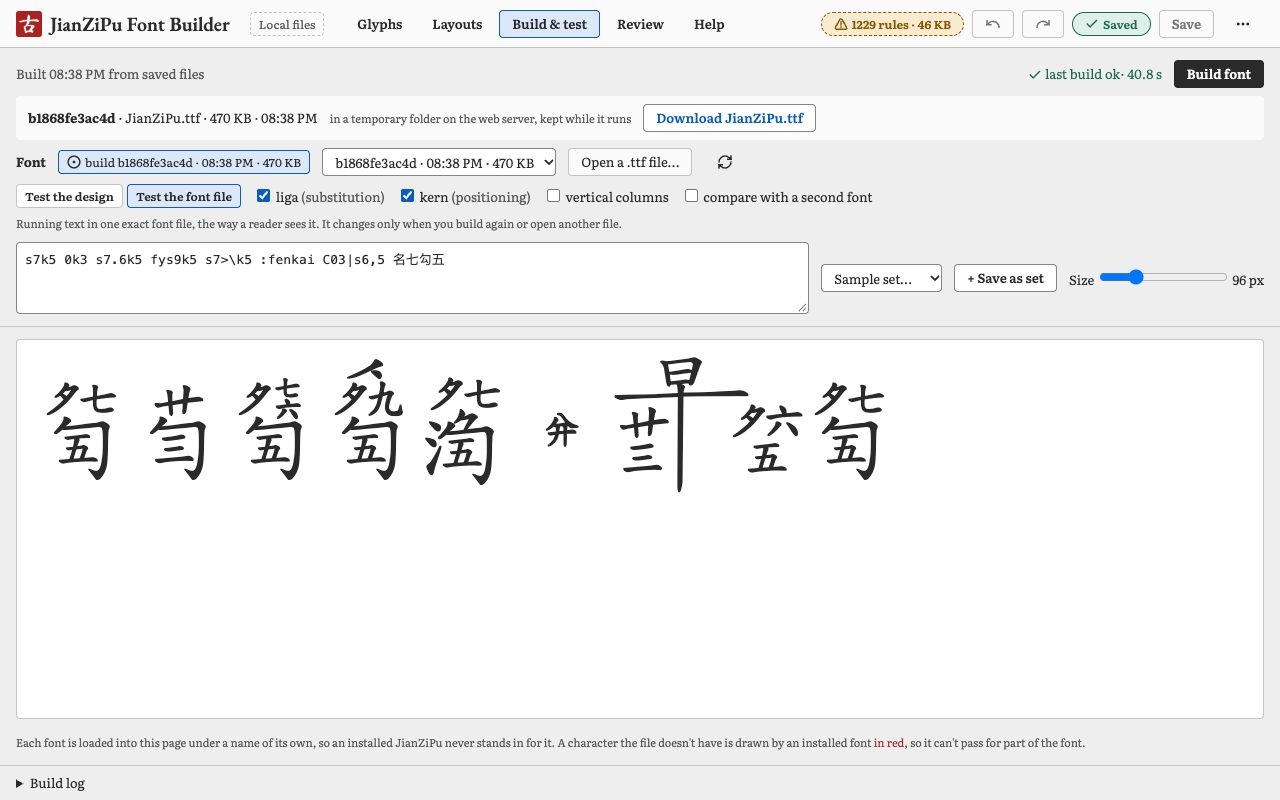
A character the font doesn't have is drawn by another font in red, so it can't pass for part of the font. In Test the design, under a word means some of its parts matched no word type.
Saving and undo
- Edits to the design and the spellings stay in the browser until you Save (⌘S). The header shows unsaved with a count; click it to see the list or Discard all.
- in the header (⌘Z, ⇧⌘Z) undo and redo whole steps, such as one rule change or one paste. Hover them to see which step.
- Save waits while a spelling clashes, and says which ones; fix them in Glyphs → Typing.
- Unsaved work survives a reload: the Builder offers to restore it.
- Online, your draft also saves itself 30 seconds after an edit, when you change screen, and when you leave the tab.
- On your own computer, Save writes
design.jsonandcomponents.csvinbuilder/inputs/(glyph files are saved from the editor). If a file changed on disk since you opened it, you choose: reload it, overwrite it, or export yours first. Then commit the files with git. - On your own computer, → Export… / Import… move the design (word types, areas, sample sets) as one JSON file; an import becomes unsaved changes you can look over first.
Your draft (online)
Invited testers use the Builder online. You sign in with a link sent to your email (no password). Everything you change goes into your own draft: only you see it, and nothing you do changes the real font or anyone else's work.
- The Your draft pill in the header shows what your draft is based on and how much you've changed. See my changes lists them item by item.
- On that list, Undo this change puts one item back the way your draft started: a glyph, a glyph's spellings, an area or a word type. For a word type, Show the spacing rules lists each rule you changed, and each has its own Undo. Every undo is one step you can take back with . To throw everything away at once, use → Discard my draft….
- To share your work, → Export my draft (.zip)… and send the file. Import a draft (.zip)… opens one again.
- When the font is updated, a banner offers Update my draft…: the font's changes come in, and where you both changed the same thing you pick Keep mine or Take the font's.
- Feedback in the header goes to the font's maintainer. Confusing, broken or lovely, it's all useful.
Change Requests
When some of your changes are ready for the real font, send them as a Change Request (a CR). The font's maintainer looks at each change, keeps or skips it, and replies.
- On Your changes, choose Send Change Request…. Every change is ticked to start with; untick any you want to keep working on. Give it a title, say what you changed and why, and how you'd like to be credited in the release notes: your name the way it should read, such as Mei Chen or Mei Chen (Taipei Qin Society), or nothing for no credit.
- Save as draft keeps the request with your draft, ticks and notes included, so you can finish it later, on this computer or another. It shows on Your Change Requests as Draft · not sent, with Continue… to pick it up again.
- Before it goes, the Builder saves your draft, checks the chosen spellings don't clash, and builds a font with just those changes.
- Once sent, those changes are locked in your draft : you can look at them and try words, but not edit or undo them. Everything else stays yours to change.
- Your Change Requests shows each one's status, the maintainer's reply, and what you sent. You get an email when the status changes.
- Statuses: Sent, In review, In a release candidate (a test version of the next font), Released, Declined, Withdrawn. A request can be partly kept: "3 of 5 changes in v3.200".
- Withdraw… takes a request back, until the maintainer keeps one of its changes. Withdrawn and declined requests unlock their changes in your draft.
- When your changes are released, Update my draft… brings in the new font, and they drop out of Your changes.
Reviewing Change Requests
On your own computer, signed in as an admin, Review lists the Change Requests testers sent, newest first. An email with a link to each one arrives when it's sent.
- Open a request to see its title, notes and how its author wants to be credited, then each change before and after: glyphs drawn over each other, spellings side by side, design changes with sample words and the JSON. Keep or Skip each one, or Keep all.
- Write a reply if you like, then Save decisions. Nothing goes into the font yet: the request becomes In review (or Declined if you skipped everything) and its author gets an email. Kept changes go into the next release candidate.
- Current drafts below the requests shows what each tester is working on now. Opening a draft or a .zip and choosing Apply brings changes in directly, as one undoable step of unsaved changes. A Conflict means you changed the same thing since the draft started: pick whose version to use.
Making a release
On your own computer, Release (from Review, or → Make a release…) turns kept changes into a new version of the font. It runs git for you, with your own GitHub sign-in.
- Start a release candidate with the next version number, such as 3.200. The Builder makes the branch
release/3.200from main. A release branch holds only font files; Builder code goes to main on its own branch. - Add kept changes brings in every kept change from the reviewed requests, oldest first, as unsaved changes. Where two requests change the same thing, you pick which one wins.
- Check the result in Layouts and Build & test, adjust, then Save.
- Build candidate runs the tests, builds the font, writes the version and the changelog entry, and tags
v3.200-rc.1. GitHub publishes it as a pre-release, and the requests' authors get an email. Open the pull request from there. If testers find a problem, fix it and build again (rc.2). - Merge the pull request on GitHub with Create a merge commit (not squash or rebase, which would leave the candidate's tag off main), then Publish: main is tagged
v3.200, GitHub publishes the release with the font attached, jianzipufont.com serves the new font, and the requests become Released.
Version numbers have a three-digit minor part (3.100, 3.200, 3.201), because the font stores the version as a number. Raise the first number only when existing documents would look different or break.
The full process, with testing a candidate and what to do when a step fails, is in docs/maintainers/releasing.md in the repository.
Keyboard shortcuts
| Everywhere | |
|---|---|
| ⌘S | Save |
| ⌘Z / ⇧⌘Z | Undo / redo (not while typing in a field) |
| Glyphs → Typing | |
| Enter / ⇧Enter | Keep the cell, move down / up |
| Tab | Next cell; accepts a suggestion in an empty Latin Entry |
| Esc | Put the old value back |
| Layouts | |
| Tab / ⇧Tab | Next / previous part |
| arrows (⇧ × 10) | Nudge the selected part's gap |
| b | Show or hide boxes |
| ⇧1, +, − | Fit, zoom in, zoom out |
| ⌫ | Delete the selected rule arrow |
| Glyph editor | |
| ⌘S, ⌘Z | Save the glyph, undo in the glyph |
| V P ⇧P R O H Z | Select, Pen, Pencil, Rectangle, Ellipse, Hand, Zoom |
| D G L | Reference dot, compare glyph, last saved |
| ⇧1 / ⇧0 / ⇧2 | Fit / 100% / fit the selection |
| ⇧G | Grid |
| ⌥⌘O | Outline lines |
When something looks wrong
- A character shows in red
- The font doesn't have it yet: a new glyph or spelling isn't in a build. Build font again. In Try it, red means "not in the font until the next build".
- The live preview and the font differ
- The live preview includes unsaved changes; the font is only what was saved when it was built. Save and build.
- under a word
- Some parts of the word matched no word type, so the font won't place them. Check the spelling, or the word type's parts in Layouts.
- Save is waiting
- A spelling clashes with another glyph's or isn't valid. Show them lists the cells to fix.
- A new glyph never appears in words
- It needs an area (Unassigned in Glyphs) and at least one spelling.
- The build failed
- The first error is shown above the build log; the log has the rest. Messages and errors lists the usual ones and their fixes.
Messages and errors
What the Builder's messages say, word for word, and what to do about each. Words in italics stand for a name or number that changes.